 Winsmate
How to fix Fortnite stutter on PC
Stutter is when Fortnite freezes for a split second, even when your FPS counter looks high. It nearly always comes from one of a few things: shaders being built, something running in the background, slow RAM or storage, or power saving. Work down this list. The first steps fix most PCs.
- Play a match or two after any update so shaders can finish building.
- Close your browser, launchers and anything downloading.
- Turn off Xbox Game Bar background recording.
- Set Windows to Best performance and plug in your laptop.
- Check your RAM runs at the speed on its box.
- Install Fortnite on an SSD.
First, check it’s stutter and not lag
Turn on Show FPS in Fortnite (Settings > Video > Advanced Graphics). Then watch the number when it happens.
- The FPS number drops when it freezes: that’s your PC. Keep reading.
- FPS stays steady but players jump around or shots land late: that’s your connection, not stutter. Use a cable instead of Wi-Fi and stop downloads on your network.
1. Let shaders finish building
After a Fortnite update or a new graphics driver, the game has to build its shaders again. While it does, the first matches can stutter. Play a match or two (Creative or Team Rumble is fine) before you judge. If it smooths out, that was it.
If the stutter started after a driver update and never goes away, clear the shader cache:
- Open the Start menu and search Disk Cleanup.
- Pick your C: drive.
- Tick DirectX Shader Cache and press OK.
Fortnite builds the cache again, so the next match or two can stutter more. After that it should be smoother than before.
2. Close what’s running in the background
Anything that wakes up during a match can steal the processor for a moment, and that moment is a stutter. The usual suspects are browsers with lots of tabs or a video playing, launchers downloading updates, cloud sync like OneDrive, and RGB or monitoring apps.
- Press Ctrl + Shift + Esc to open Task Manager.
- Click the CPU column, then the Memory column, to see what uses the most.
- Close the apps you know you don’t need while you play. Leave anything you don’t recognise alone.
Stop apps opening with Windows in Settings > Apps > Startup, and pause downloads in the Epic Games Launcher and Steam before you play. You can also pause Windows Update for a week in Settings > Windows Update.
3. Turn off background recording
Xbox Game Bar can record your game all the time in case you want a clip. That costs performance even when you never save one.
- Windows 11: Settings > Gaming > Captures, then turn off Record what happened.
- Windows 10: Settings > Gaming > Captures, then turn off Record in the background while I’m playing a game.
Only keep one clip recorder running. If you use NVIDIA’s Instant Replay, AMD’s recorder, Medal or OBS, don’t run two of them at once.
4. Stop Windows saving power while you play
- Go to Settings > System > Power & battery and set Power mode to Best performance. On Windows 10, click the battery icon and drag the slider to Best performance.
- On a laptop, plug in the charger. On battery, laptops slow themselves down to save power. Make sure battery saver is off.
- On a laptop with two graphics chips, go to Settings > System > Display > Graphics, add Fortnite and choose High performance. The file is FortniteClient-Win64-Shipping.exe in Epic Games\Fortnite\FortniteGame\Binaries\Win64.
5. Update your graphics driver the right way
Get your driver from the company that made your graphics card, not from Windows Update: the NVIDIA App, AMD Software: Adrenalin Edition or Intel’s graphics software. Restart after it installs, then give it a match or two for the shaders (step 1).
If the stutter started right after a driver update, try the previous driver. New ones are not always better for every game.
6. Check your RAM runs at full speed
Lots of PCs run their RAM slower than it’s made for, because a setting called XMP (Intel) or EXPO (AMD) is off. Slow RAM hurts your lowest frame rates, and those low points are exactly what stutter is.
- Open Task Manager, go to Performance > Memory and look at Speed.
- Compare it with the speed on your RAM’s box or listing, for example 3200 or 6000.
- If yours is lower, turn on XMP or EXPO in your PC’s BIOS. It may also be called DOCP or A-XMP. Your motherboard’s manual shows where.
Two sticks of RAM are also better than one, because the PC can use both at once. Many laptops and some shop-built PCs can’t change RAM speed, so skip this if you can’t find the setting.
7. Put Fortnite on an SSD
Fortnite loads textures and skins from your drive while you play. On an old hard drive (HDD), that loading causes hitches. Epic recommends an SSD. To move it, open the Epic Games Launcher, go to Library, click the three dots on Fortnite, then Manage and Move. Leave some free space on the drive too.
8. Use settings that keep your FPS steady
In Fortnite, go to Settings > Video:
| Setting | Use |
|---|---|
| Rendering Mode | PerformanceLighter on your PC and uses less memory. Restart Fortnite after changing it. |
| Frame Rate Limit | A number your PC can hold in fightsA steady 144 feels smoother than jumping between 140 and 240. |
| V-Sync | Off |
| Textures | LowRunning out of video memory causes hitches. |
The low end PC settings guide has the full list.
9. Repair Fortnite’s files
A broken game file can cause freezes in the same spot every time. In the Epic Games Launcher, go to Library, click the three dots on Fortnite, then Manage and Verify. It checks every file and fixes the bad ones.
10. Still stuttering? Check the heat
If it gets worse the longer you play, your PC may be getting too hot and slowing itself down. Clean the dust out of the fans, keep the vents clear, and don’t play with a laptop on a bed or a blanket.
Also check Windows is using your monitor’s full refresh rate in Settings > System > Display > Advanced display. A 144 Hz monitor stuck at 60 Hz looks choppy even when nothing is wrong.
Rather do it in one click?
Winsmate Tweaks switches on the Windows settings that get you more FPS, less input lag and steadier ping with one button. Driver check tells you in plain words what’s out of date and spots RAM running slower than it’s made for. The FPS overlay shows your 1% lows and a frame time graph while you play, so you can see stutter as it happens.
Winsmate saves your old settings before it changes anything, so one button puts them back.
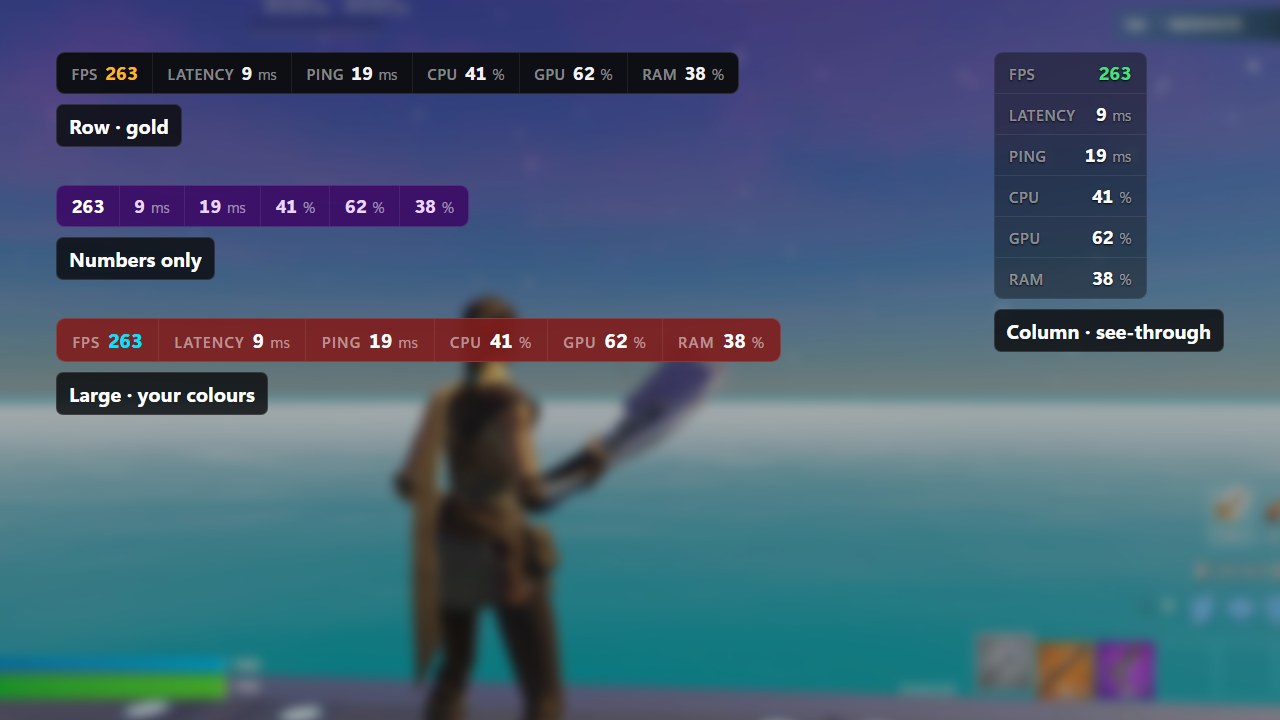
£7.99 once. Every future update is free. The numbers in the picture are an example.
More free guides
- How to get more FPS in FortniteThe settings that make the biggest difference.
- Fortnite input delay fixMake aim and edits feel instant.
- Best Fortnite settings for a low end PCEvery setting, for weak PCs and laptops.
- Fortnite tweaks: what actually helpsSafe Windows tweaks, and the ones to skip.
Still stuck? Message @winsmate_ on TikTok.